

PaintShop Pro 2023 can still be useful for many projects, but some bugs can interrupt your work at the worst possible moment. You might save a file only to discover that your text has changed, struggle to move a selection precisely, or run a script that ignores the options you expected to see.
These problems are particularly frustrating because they don’t always have an obvious cause. Some happen consistently, while others appear only under certain circumstances.
In this guide, I’ll go over several known issues in PaintShop Pro 2023, explain what you might notice, and share workarounds that can help you continue working. These are practical ways to deal with the problems, not permanent fixes to the underlying software.
1. Check your PaintShop Pro 2023 version first
Before troubleshooting individual tools, it’s worth checking which version of PaintShop Pro 2023 you have installed.
One early release, version 25.1.0.28, introduced significant problems following a patch released in October 2022. Among them were incorrect results from the Expand and Contract commands and missing dialog windows when running scripts.
For example, expanding a selection around a shape could produce an uneven result instead of enlarging the selection consistently.
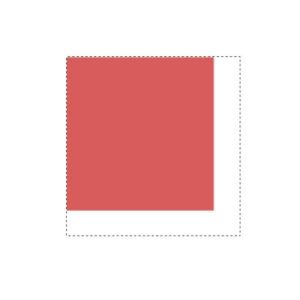
The original intention was to prevent corners from becoming rounded when a selection was enlarged. Unfortunately, the change also introduced a problem with how Expand and Contract behaved.
Scripts presented another issue. Some scripts are designed to run without asking for additional information, but others rely on a dialog box so you can enter text, choose colors, or adjust settings. When that dialog doesn’t appear, the script may run with its default values instead of the options you wanted.
These two problems were reproducible in the affected version.
Workaround: If you are running version 25.1.0.28, install Update 2 from the official PaintShop Pro website. The update brought the version number to 25.2.0.58 and addressed these particular issues.
2. Text wrapping may disappear after saving
Text wrapping is useful when you want words to fit inside a selection or a vector shape. It can be especially helpful for layouts that include columns, labels, or text arranged within a defined area.
In PaintShop Pro 2023, wrapped text may look correct while you’re working, then become unwrapped when you edit it or reopen the file. This can be particularly troublesome if you have already arranged the rest of your project around the text.

After saving and reopening the project, the words may no longer stay inside the original boundaries.
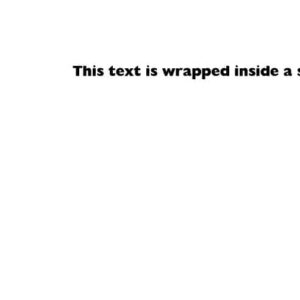
This doesn’t happen every time, although it may occur more often when you copy and paste text or duplicate a text layer. Other situations can trigger it too.
What can you do if the text is already unwrapped?
Unfortunately, once the text has become unwrapped during saving, simply opening the file in another version of PaintShop Pro may not restore the original arrangement.
One workaround is to rebuild the wrapped text:
- Copy the text that is now unwrapped.
- Delete the affected text layer.
- Re-create the original selection around the area where the text should fit.
- Paste the copied text back into that selection.
This means repeating part of your work, which is certainly not ideal. If your project relies on several blocks of wrapped text, consider using a different PaintShop Pro version for that part of the job.
For example, a page designed like a newspaper, with several columns of text, could require a great deal of repair if the wrapping changes after saving.
3. Move selections without the strange preview
PaintShop Pro allows you to move a selection by right-clicking and dragging it. This can be handy when you need to reposition a selection precisely over part of a photo or another image.
In PaintShop Pro 2023, however, this action can produce a confusing display. Instead of seeing the selection move normally, you may see a ghosted copy of the image following your cursor while the selection outline disappears.
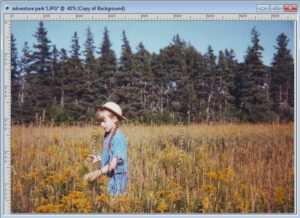
As you drag the selection, the image preview may become difficult to interpret.
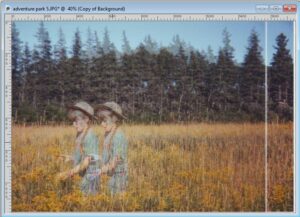
The selection itself can still be moved, but judging its exact position becomes much harder. You may have to guess where it will end up.
Use Edit Selection instead
There is another way to reposition a selection without relying on the troublesome right-click drag.
- Create your selection as usual.
- In the Layers palette, click the Edit Selection icon at the top.
- The selection will appear as a reddish overlay.
- Choose the normal Move tool and reposition the selection where you need it.
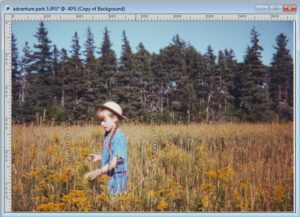
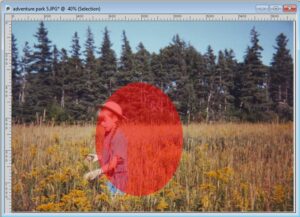
This approach takes a couple of extra clicks, but it gives you a more practical way to place the selection accurately. Working with the selection in this form also allows you to adjust its size, shape, or rotation when necessary.
4. Text with and without a stroke may not line up
Sometimes you need two versions of the same text: one with a visible outline, or stroke, and another without it.
In earlier versions of PaintShop Pro, you could duplicate the text and change the stroke settings while keeping both versions aligned. In PSP 2023, the results may not always match as expected.
This behavior appears to be inconsistent. It may affect some fonts but not others, so it can be difficult to predict when you’ll encounter it.
A small stroke can help
If you need a solid text version and a matching outlined version, try giving the version that should appear without an outline a 0.1 stroke in the same color as its fill.
Because the stroke and fill use the same color, the thin stroke should not be noticeably visible. However, PaintShop Pro will treat that text as having a stroke, which can help the two versions match more consistently.
It is a small workaround, but it may save you from having to adjust the text alignment manually.
5. Selecting several layers can become unpredictable
Working with multiple layers is part of everyday editing in PaintShop Pro. You may need to select several layers together, move them, or make changes to a group of elements.
In PSP 2023, selecting multiple layers in the Layers palette can occasionally behave unexpectedly. You might select three layers and find that an additional layer has been included. Or, when you hold Ctrl to deselect one layer, another layer may become selected instead.
Unlike some of the other issues described here, this one is sporadic. There doesn’t seem to be a consistent pattern that explains when it happens.
Workaround: If the wrong layers become selected, start the selection process again. Sometimes repeating the same steps works correctly the second time.
It isn’t a particularly satisfying solution, but restarting the selection is the practical option described for this behavior.
6. PaintShop Pro 2023 crashes without warning
Crashes can happen in any version of PaintShop Pro, and they aren’t necessarily caused by one particular bug.
In my experience, PSP 2023 was quite stable for a long time. Then, I started encountering several crashes within a short period, followed by stretches when the program worked without any problems.
Other users may have different experiences. Some encounter crashes more frequently than others, and there isn’t one confirmed cause for every situation.
Possible contributing factors include conflicts involving hardware components, connected peripherals, or other software, such as antivirus programs.
Reduce the risk of losing your work
The most useful precaution is to save your project regularly. Don’t wait until the end of a long editing session to save everything.
You can also check the Auto-Save settings:
- Open the File menu.
- Choose Preferences.
- Open Auto-Save settings.
Make sure the available Auto-Save options suit the way you work.
Auto-Save won’t prevent a crash, but saving frequently and checking your settings can help reduce the amount of work you might need to repeat.
7. What if you encounter another bug?
The issues covered here are not necessarily the only problems you might encounter in PaintShop Pro 2023. Different projects use different tools, commands, and settings, so another workflow may reveal a problem that isn’t listed above.
When you run into something unexpected, first consider whether it happens consistently or only occasionally. If a workaround is available, it may let you finish the project without changing your usual workflow too much.
If you have access to an older PaintShop Pro version, keeping it installed can also be useful. In particular, versions such as X7 or X8 may be worth keeping for projects that rely on text wrapping, since those were among the early versions to introduce that feature.
Older versions may also be more compatible with certain legacy plugins, especially when using a 32-bit version. If you don’t rely on older plugins, a more recent version may still be useful for other tasks.
The important thing is to keep the version that works best for the tools and features you need. If you have several versions available, you can choose the one that is better suited to a particular project.
Keep creating, even when PaintShop Pro misbehaves
A software bug can interrupt your work, but it doesn’t always mean you have to abandon the project. Knowing which problems are associated with PaintShop Pro 2023 and which workarounds are available can help you spend less time troubleshooting and more time creating.
If you use PaintShop Pro regularly, keep saving your projects, pay attention to how your tools behave, and don’t be afraid to try an alternative method when something doesn’t work as expected.
Want more PaintShop Pro tutorials?
Visit Scrapbook Campus for more tips, tutorials, and creative resources to help you get more out of PaintShop Pro. Whether you’re learning a tool or looking for a different way to approach a project, there’s more to explore.